BrainDeer AI
BrainDeer AI is a chat assistant that lives in Plugin Studio. Tell it what you want in plain language — “make this look right”, “use a hot colormap”, “rotate the brain” — and with Agent mode on it can drive the viewer directly (with checkpoints before actions; destructive steps still ask for approval).
Open the chat
- Open Plugin Studio (right panel).
- Select the BrainDeer AI tab.
- Under Settings, pick a provider (e.g. Anthropic), paste your API key, and choose a model.
- Return to the chat, type a message, press Enter (or Send).
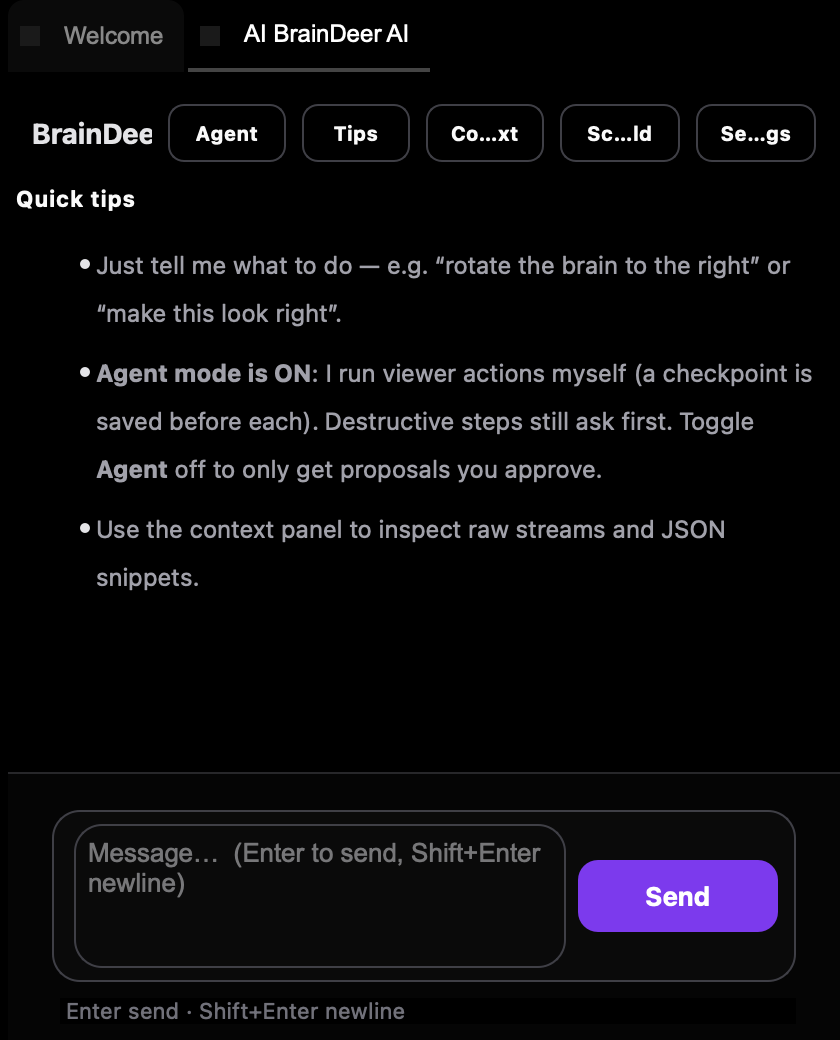
Quick tips remind you that Agent mode can act on the viewer, while the Context panel exposes raw streams for power users.
Example: set the colormap to hot
Ask for a display change and watch the active volume update. Here the assistant switches the color scheme to hot — the kind of small, high-impact tweak that used to mean digging through menus.
“Use a hot colormap” — Agent mode applies it in the viewer.
What it is good at
| Ask for… | Typical effect |
|---|---|
| Colormap / contrast / opacity | Display tuning on the selected volume |
| Layout & orientation | Rearrange or reframe the views |
| “Make this look right” | Suggest a sensible window + colormap |
| Scene in Blender / orbit / zoom STN | Opens Blender, streams the 3D scene, plays a camera path |
| Plugin scaffolding | Help sketch a new plugin (see developer docs) |
Agent mode ON = the assistant can execute safe viewer actions after checkpoints. Turn it OFF if you only want proposals to approve manually.
API keys stay local
Keys are entered in the plugin Settings and used for the provider you choose. Do not commit keys into shared scripts or the repo.
See also
- 3D editing & high-res Blender — Start bridge, AI camera paths
- Plugin catalog
- Volumes & overlays — colormaps without the AI
- Developer docs — plugin development — when you graduate from chat to shipping a plugin